ToolsFromPavis – Initiative Wheel and MeG Encounter Library new features and updates

This summary covers updates released between Nov 23–27, 2025, plus one Generators UX change on Nov 26. All changes draw directly from user feedback and repeated tabletop use. The tools remain intended primarily for larger screens, but several areas now respond more smoothly when used on phones or tablets.

At a glance

  • Initiative Wheel: clearer turn cues, steadier roster behavior, tweakable suggestion batches, and import of enemies from Markdown created in the MeG Library.
  • MeG Encounter Library: improved responsiveness, better reliability, and smoother navigation.
  • Markdown Preview & Obsidian Export: direct download, template access, and easier movement between preview outputs.
  • Generators Hub: simpler index view; quantity selection happens on each generator’s page.
  • Files & Recent Items: fewer duplicates and more consistent visibility.
  • Site-wide: reduced bot load, steadier caching, and clearer error pages.
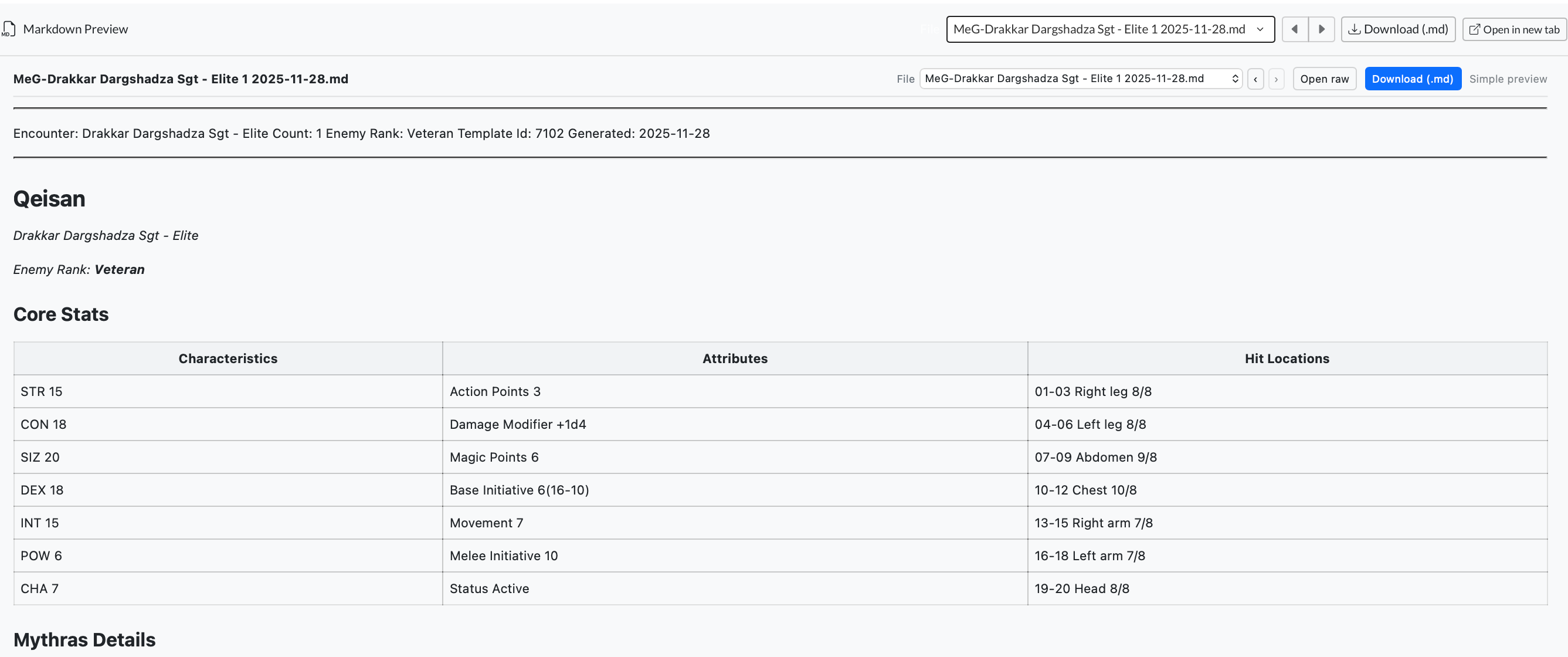
  • Tip Jar / Stats: updated text and steadier daily capture.

Initiative Wheel (/initiative)

  • Interface responds more smoothly on smaller devices while still being designed for real use on laptops or tablets at the table.
  • Roster improvements: enemy groups expand automatically when they contain entries; selection updates feel steadier.
  • Clearer turn-ending indicator and a subtle highlight on the active segment.
  • Controls made consistent across views, plus minor stability adjustments.
  • Suggestions moved to the upper-right. Their count can now be tweaked in Settings.
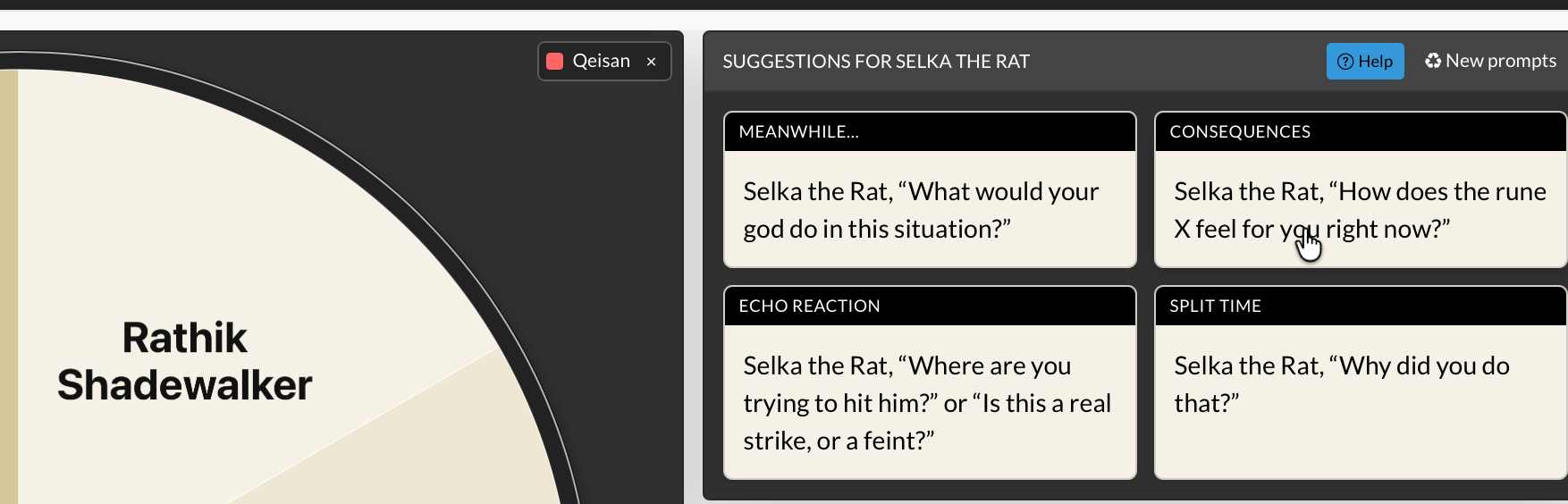
  • Larger wedge labels for easier reading across the table.
  • New feature: import enemies directly from Markdown produced in the MeG Library.
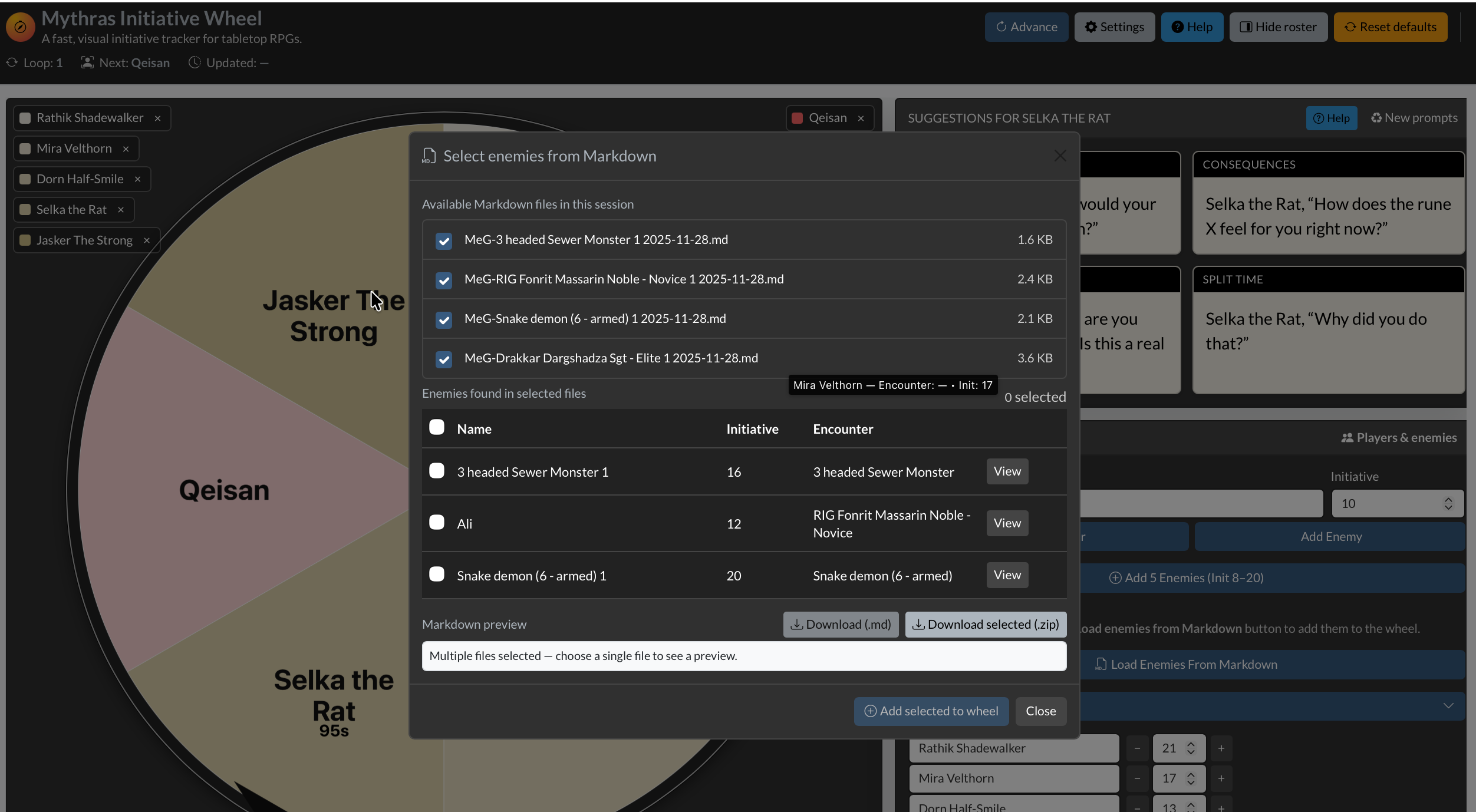
  • Navigation updated so you can flip through recent Markdown previews without leaving the Wheel.

Community notes:

  • Hypnotician (Reddit): “That is unbelievably helpful. You have no idea. Thank you.”
  • Matt_E (Mythras Discord): “Hannu, this is kind of amazing.  Thank you!”

MeG Encounter Library (/megjson)

  • More responsive across devices, keeping the layout readable even when space is limited.
  • More predictable menu behavior and consistent placement of MeG-related navigation.
  • Stability improvements to prevent disappearing entries in Files and to keep recent items reliable.
  • Navigation improvements so you can flip through Markdown previews while reviewing encounters.
Markdown Preview & Obsidian Export (/preview_markdown)

  • One-tap download for the rendered Markdown output.
  • Access to Markdown templates for quick starts.
  • Smoother session flow and easier scrolling through multiple outputs.
  • Cleaner “lite” preview mode with updated spacing and theme polish.
  • Navigation refined so switching between preview outputs is more straightforward, including from within Initiative Wheel and MeG Library.
Generators Hub (/generator/)

  • Nov 26 UX change: Removed the global “# to generate” from the index. Quantity selection now happens inside the specific generator page.
  • Menu reliability fixes to keep generator lists in sync.

Files & Recent Items

  • Session files now remain visible more consistently.
  • Improved deduplication in the recent-files area.

Site-wide & Operations

  • Caching architecture updated to use Service Worker + Cache Storage for steadier behavior when the network fluctuates.
  • Reduced unnecessary bot traffic through refined robots settings.
  • 404/500 pages rewritten for clearer guidance and consistency.

Tip Jar (/tipjar)

  • Updated text and presentation.

Stats (/stats)

  • Daily stats capture adjusted to show “today” more reliably.

If you notice anything unusual in this update window (Nov 23–27), feel free to report it and it will be checked promptly.

There is also What’s New page and rewritten help pages here and there
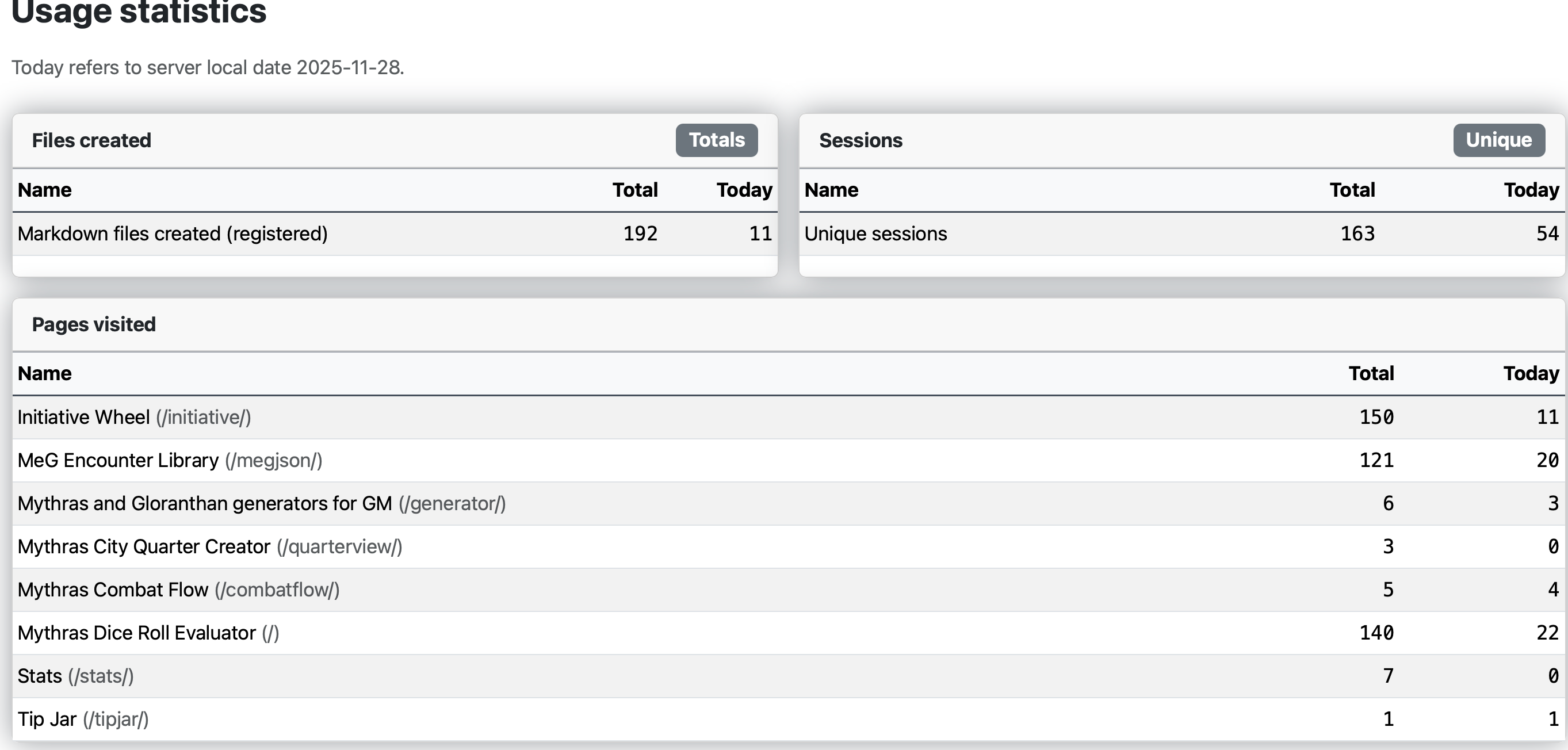
More charts and tables for Mythras. Description of Mythras Encounter Generator
MeG Encounter Library — Faster Encounters, Cleaner Markdown for Obsidian and JSON

The MeG Encounter Library at https://www.toolsfrompavis.com/megjson/ has been enhanced to pull ready-to-run Mythras opponents into our prep. This update focuses on reducing friction: clearer browsing, predictable filtering, reliable generation, and smoother hand-off into Obsidian or your VTT. Everything you create stays tied to your current browser session, so prep flows naturally from idea → statblock → notes.

Overview

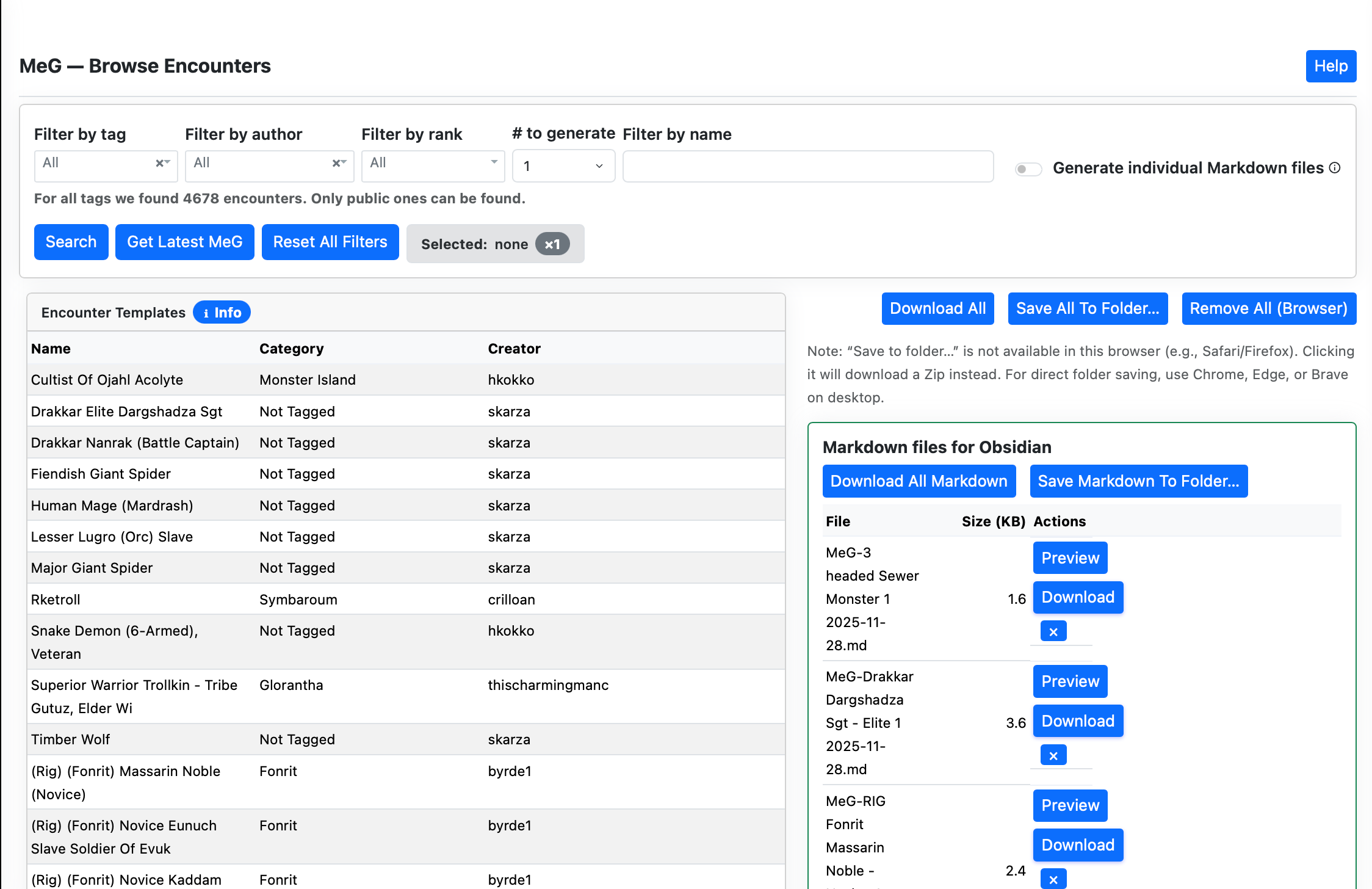
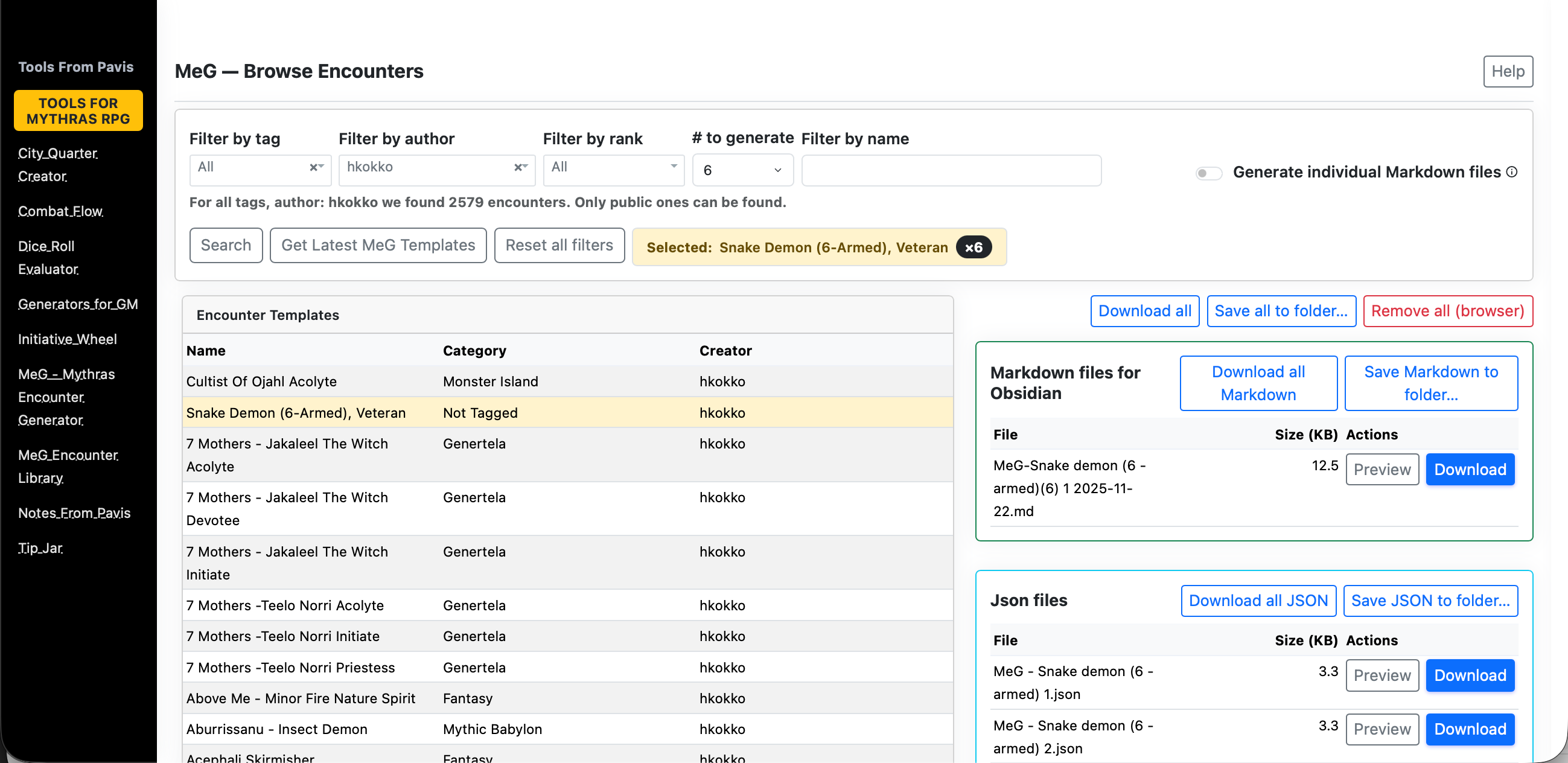
The MeG Encounter Library lets you browse and filter a catalog of ready-to-run Mythras opponents and creatures, then generate encounter artifacts (Markdown and JSON) for use in your session.

  • Browse with filters by Tag, Author, Rank, and Name contains.
  • Select an entry and choose how many opponents to generate (1–8).
  • Generate to produce Obsidian-ready Markdown and JSON into the current session.
  • Manage your session’s files: preview, download, zip, or remove.
Quick start
  1. Go to MeG Encounter Library.
  2. Type a few letters in the Name field or pick a Tag/Author/Rank.
  3. Set count – default is currently 6. Click a row to select it
  4. Find the created files in the Session Files panel; download or preview as needed.
  5. The selected filters stay in your browsers’ local storage.
Browsing and filtering
  • Name contains — free-text filter that matches encounter names.
  • Tag — category/tag dropdown (“All” shows everything public).
  • Author — authors available under current Tag/Rank/Name filters.
  • Rank — available ranks under current Tag/Author/Name filters.

Reset Filters clears all filters back to defaults.

Refresh Catalog forces a fresh reload of the MeG catalog (bypassing cache).

You can also produce markdown either one enemy at the time or multiple using selection button.

Selecting and generating
  • Click a table row to select an encounter. The row becomes highlighted and selected number of enemies in both markdown and json is generated
  • Your current filters, sorting, and page are preserved when selecting a row — selecting does not change filters.
  • Even if your filters would normally hide the selected row, it will stay visible at the top until you change the selection.
  • Count — number of opponents to generate (1–8). Values outside this range are clamped.
  • Name override — optional; if provided, it is used as the output name.

If the backend can only produce a partial set (e.g., 2 of 4), a notice appears. You can retry to fill the rest.

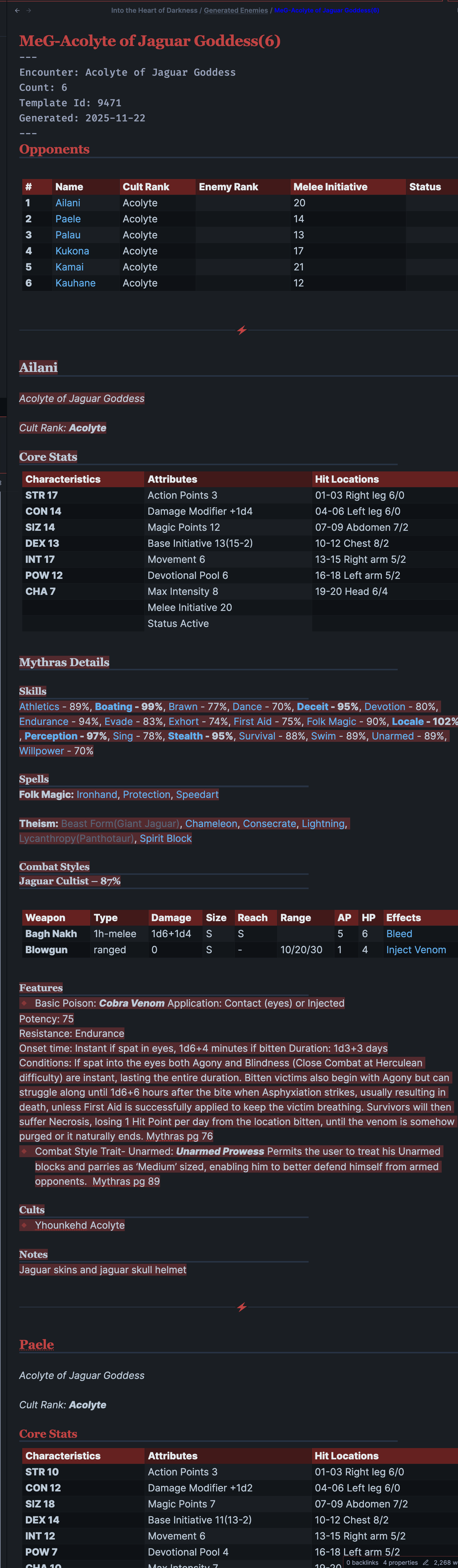
The preview of markdown looks like this.

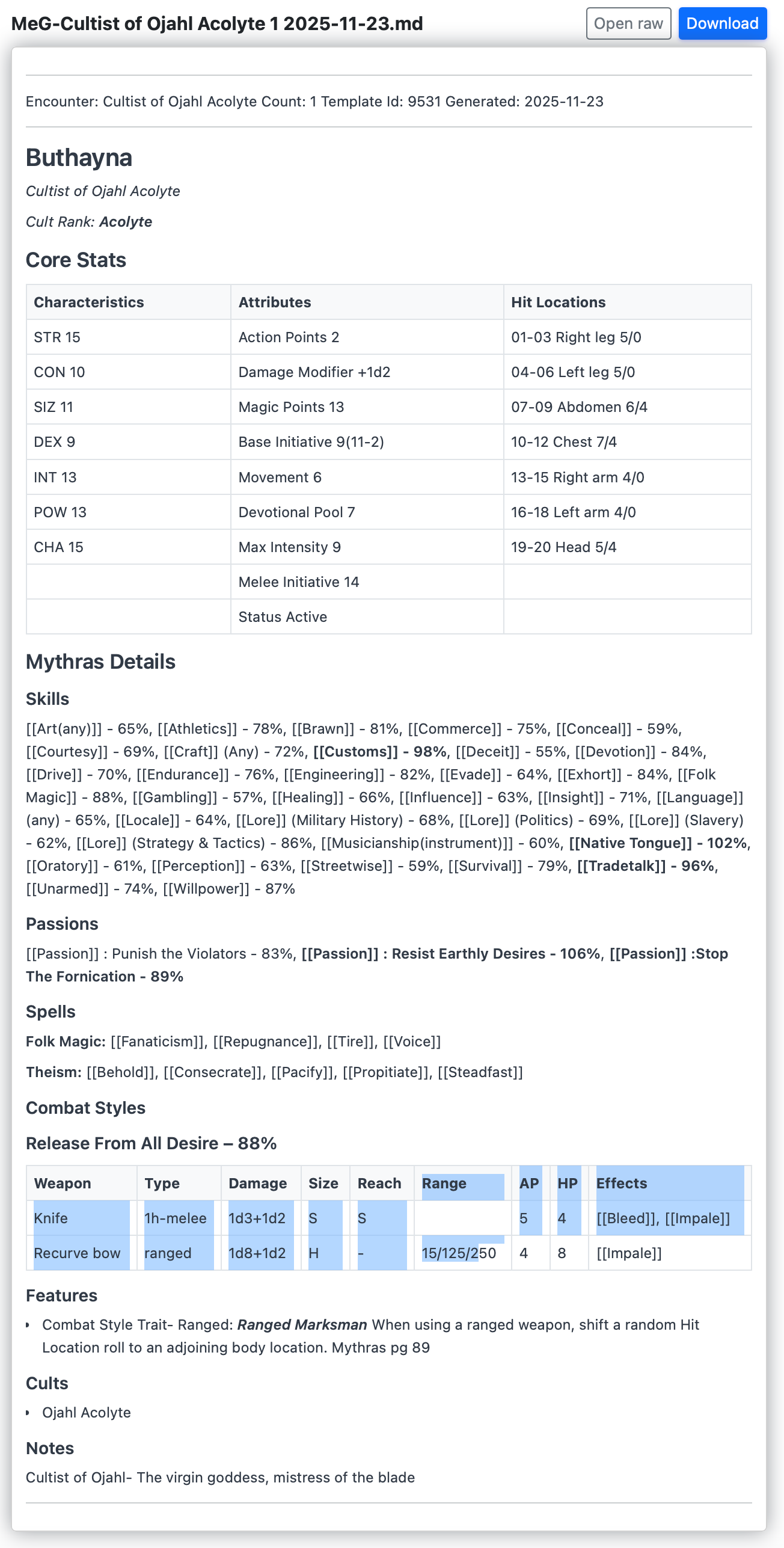
In obsidian the entries will look something like this.

Session Files panel

Every generated artifact is registered to your current browser session and listed in two groups:

  • Markdown — Obsidian-ready statblocks (.md); previewable and downloadable.
  • JSON — for VTTs or further tools (.json); direct download.

Actions:

  • Preview Markdown — opens a rendered view for a single .md file.
  • Download — fetch one file.
  • Remove — removes the file from this session (optionally from disk).
  • Download all — zip the entire session: /session-files/download-all.
  • Download all Markdown — /session-files/download-all-md.
  • Download all JSON — /session-files/download-all-json.

Session scope lasts until you close the browser/session or explicitly clear. Autodiscovery may pull in recent files on first visit when enabled.

Generated files will remain available for a few hours so download them to your machine as needed and deploy to your VTT or Obsidian.

Saving to a folder (browser support)

The “Save … to folder…” buttons use the browser’s File System Access API to let the page write multiple files directly into a folder you choose. This is currently supported in Chromium-based desktop browsers (Chrome, Edge, Brave) and only over a secure context (HTTPS or localhost).

  • Safari and Firefox: do not provide this API in regular browsing as of Nov 20, 2025. When you click the button, the app will download the equivalent Zip instead (e.g., “Download all”).
  • iOS/iPadOS Safari: the folder picker is not available; use the Zip downloads.
  • Zip alternative: use “Download all”, “Download all Markdown”, or “Download all JSON”, unzip in Finder/Explorer, and move the files where you want (e.g., your Obsidian vault).
  • Tip: If you prefer one‑click saving into a folder, open the page in Chrome/Edge/Brave on desktop.
Tips & troubleshooting
  • If nothing appears after Generate, check the notice above the table. You can try a lower Count.
  • Use Reset Filters if the table shows zero results.
  • On a flaky network, try again; cached data allows browsing even when offline.

Where your settings live

The hub stores your preferences (like last-used count) in your browser’s local storage.

They appear only on the same device + same browser and disappear if you clear site data.

To clear them, remove site data for: http://www.toolsfrompavis.com

For other tools, charts and tables go to Mythras Charts and Tables

Visit also Mythras Encounter Generator to create templates for your encounters and enemies

Mythras Initiative Wheel — Keeping Turns Moving and Every Player Seen


What this app does

The Mythras Initiative Wheel is your **table spotlight manager**. It is system independent as such. https://www.toolsfrompavis.com/initiative/

It keeps every player **equally visible** and gently reminds you when it’s time to move on. Each participant—player or enemy—sits on a bright, rotating wheel. The active slice is highlighted, and a clear turn timer (default: two minutes) shows how much “screen time” they have left.

When the timer runs out, the app nudges you: it’s time to shift the camera. You can **add or remove players and enemies on the fly**, import foes from the Mythras Encounter Generator (MEG), and let the built-in suggestion prompts give hesitant players a quick push toward a decision.

Use the Wheel when:

  • The party is split and you don’t want anyone to sit idle.
  • Social or investigative scenes risk drifting to one or two vocal players.
  • You want **combat turns** to stay sharp and fast-paced.
  • You prefer a **visual, table-facing tool** that everyone can glance at.

The Mythras Initiative Wheel doesn’t replace your judgment as GM. It simply keeps time, tracks whose turn it is, and makes sure the **story spotlight keeps moving** so every player gets their moment.

Quick Start

  1. Open the app in your browser (desktop recommended).
  2. Use the default roster to practice advancing turns.
  3. Click the wheel (or the Advance button) to move to the next actor.
  4. Open Settings to adjust turn length, sounds, or notifications.
  5. Use the Roster panel to add or edit participants, or import enemies from MEG.

Why the Wheel Matters

  • Ensures **balanced spotlight time**—even when the party goes in different directions.
  • Keeps you aware of **when to shift attention** to quieter players.
  • Speeds up **social encounters, investigations, and combat** alike.
  • Lets enemies sit in the initiative order naturally alongside players.
  • The turn timer gently enforces **forward motion** and keeps scenes from dragging.
  • Suggestion prompts help **reduce hesitation** and spark ideas during a turn.

Interface Overview

Header Toolbar

  • Advance — Move to the next participant; timer resets.
  • Settings — Adjust turn duration, notifications, and suggestion text.
  • Show/Hide Suggestions — Toggle the suggestion flyout near the wheel.
  • Show/Hide Roster — Expand or collapse the roster panel.
  • Reset Defaults — Reset roster and suggestions to defaults.

Status Row

Shows the current loop/round, who is next, and when the state was last updated.

Wheel Panel

  • Large initiative wheel; **players** in beige tones, **enemies** in red tones.
  • Click anywhere on the wheel to advance to the next participant.
  • Click on label’s x to remove the enemy or player from the wheel
  • Turn timer and progress bar under the wheel.
  • Optional sound and desktop notifications when time runs out.
  • Optional **auto-advance** at timeout.

Suggestions Flyout

  • Shows **3 common suggestions** and **5 random suggestions** for the current/next actor.
  • Helps players quickly pick an action when they feel stuck.
  • Can be shown or hidden from the header toolbar.

Roster Panel

  • Add, edit, or remove players and enemies.
  • Import enemies directly from the Mythras Encounter Generator (MEG).
  • If you delete the active actor, the Wheel automatically moves to the next one.

Settings

  • Turn length — 5 to 3600 seconds per turn.
  • Auto-advance — Automatically move to the next participant when the timer reaches zero.
  • Play sound on timeout — Short alert sound when a turn ends.
  • Desktop notifications — System notifications when time runs out (requires browser permission).
  • Turn suggestions — Edit, reset to defaults, or save your own suggestion list so it persists.

Tips & Troubleshooting

  • No sound? Check “Play sound on timeout” in Settings and your system volume.
  • No notifications? Ensure “Desktop notifications” is enabled and that the browser has permission.
  • Timer not running? Reset the timer or confirm that a sensible turn length is set.
  • Suggestions not changing? Click Reset in Settings, or use “Reset defaults” in the header.

In 100 words

The Mythras Initiative Wheel is a fast, visual spotlight tracker for any Mythras table—perfect for split parties, social scenes, and fast combat rotations. The wheel keeps every player engaged by giving each participant a timed “beat” of attention. When their two-minute turn ends, the app gently alerts the GM to shift focus. Add or remove players and enemies on the fly, import opponents from MEG, and use built-in narrative prompts to spark instant creativity. Clean visuals, smooth pacing, and equal airtime—this tool keeps your whole table active, energized, and fully immersed in the story.

Where your settings live

The hub stores your preferences (like last-used count) in your browser’s local storage.

They appear only on the same device + same browser and disappear if you clear site data.

To clear them, remove site data for: http://www.toolsfrompavis.com

For other tools, charts and tables go to Mythras Charts and Tables

ToolsFromPavis Gains a Generators Hub

Preparing a session often begins with the same small ritual: open a few generators, build a handful of NPCs or factions, and sketch the tension for the coming scenes. Until now, the tools for that lived in different corners of the site. The new Generators Hub brings them under one roof so you can reach what you need without digging.

What’s new

The page at https://www.toolsfrompavis.com/generator/ now shows every Mythras and Gloranthan generator in one tidy list. Categories are clearer, labels are easier to scan, and the clutter in the sidebar has been trimmed down so navigation stays calm even on a tablet.

The hub also lets you set the “# to generate” before entering a tool. When you’re building quick lists (patrols, rumors, bystanders, faction members), this small detail speeds things up.

Why this helps

Prep usually comes in short bursts: you build three contacts, four random travelers, a tavern staff roster, and a handful of local complications. Having one page where all that begins makes those bursts smoother. You don’t need to remember which menu holds which generator; you just land on the hub, tap, and go.

How to use it

Open /generator/. Pick what you need, choose a count, and generate. Leave the hub open in a second tab if you’re building multiple pieces at once.

Where your settings live

The hub stores your preferences (like last-used count) in your browser’s local storage.

They appear only on the same device + same browser and disappear if you clear site data.

To clear them, remove site data for http://www.toolsfrompavis.com

Other useful tools for Mythras GM can be found in Mythras Charts and Tables